Latest version v1.2.1 2026-07-01
VLC Controller turns your phone or tablet into a remote control for VLC Media Player running on your computer (or other device such as a raspberry pi). Connect over Wi-Fi, see what's playing, and control playback from anywhere.
Featuring a clear, intuitive GUI and easy setup, using VLC Media Player as a media station has never been easier!
Details
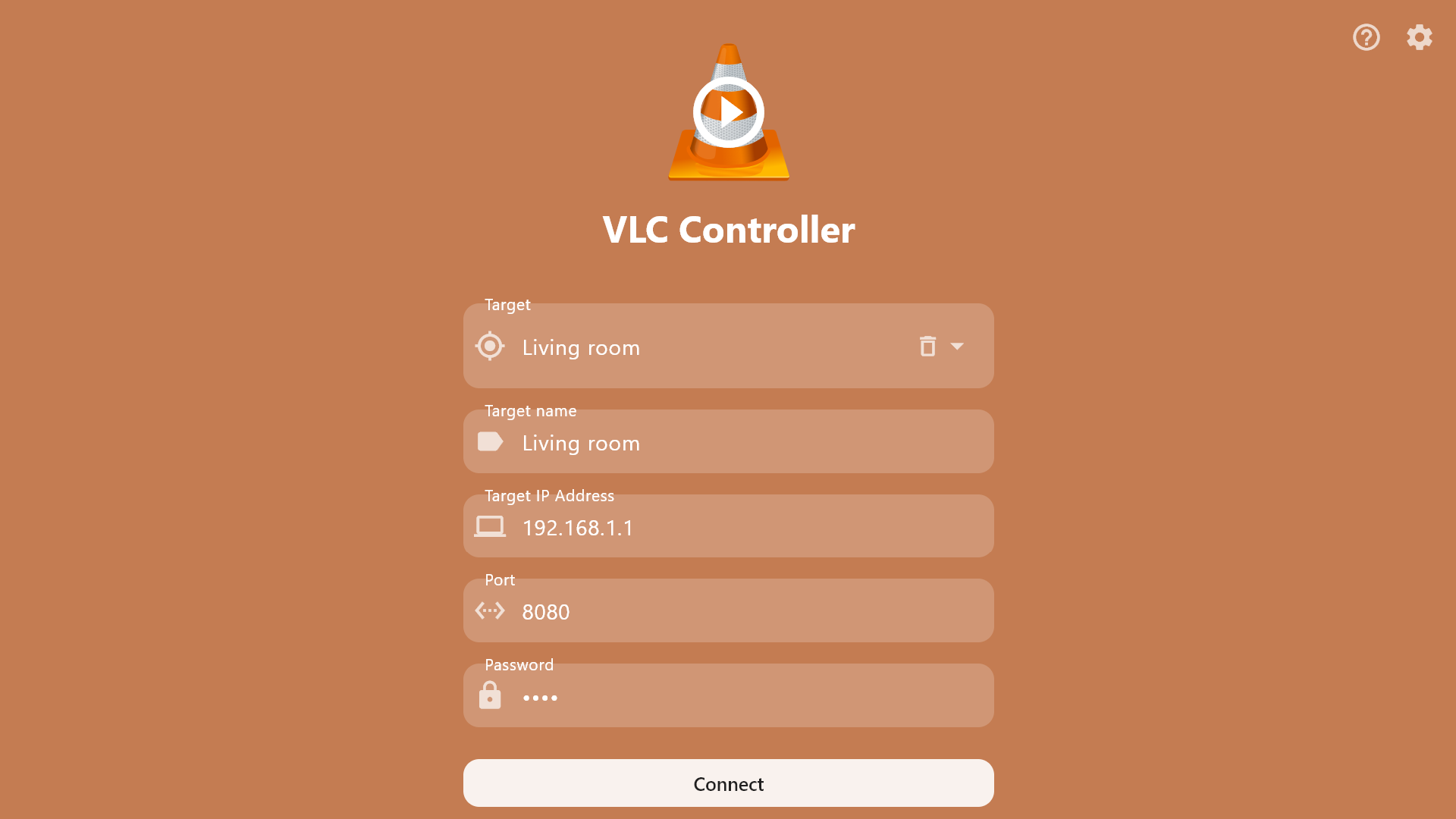
Connection screen
Enter your PC's IP, port, and VLC HTTP password. Multiple targets can be saved to quickly switch connections.
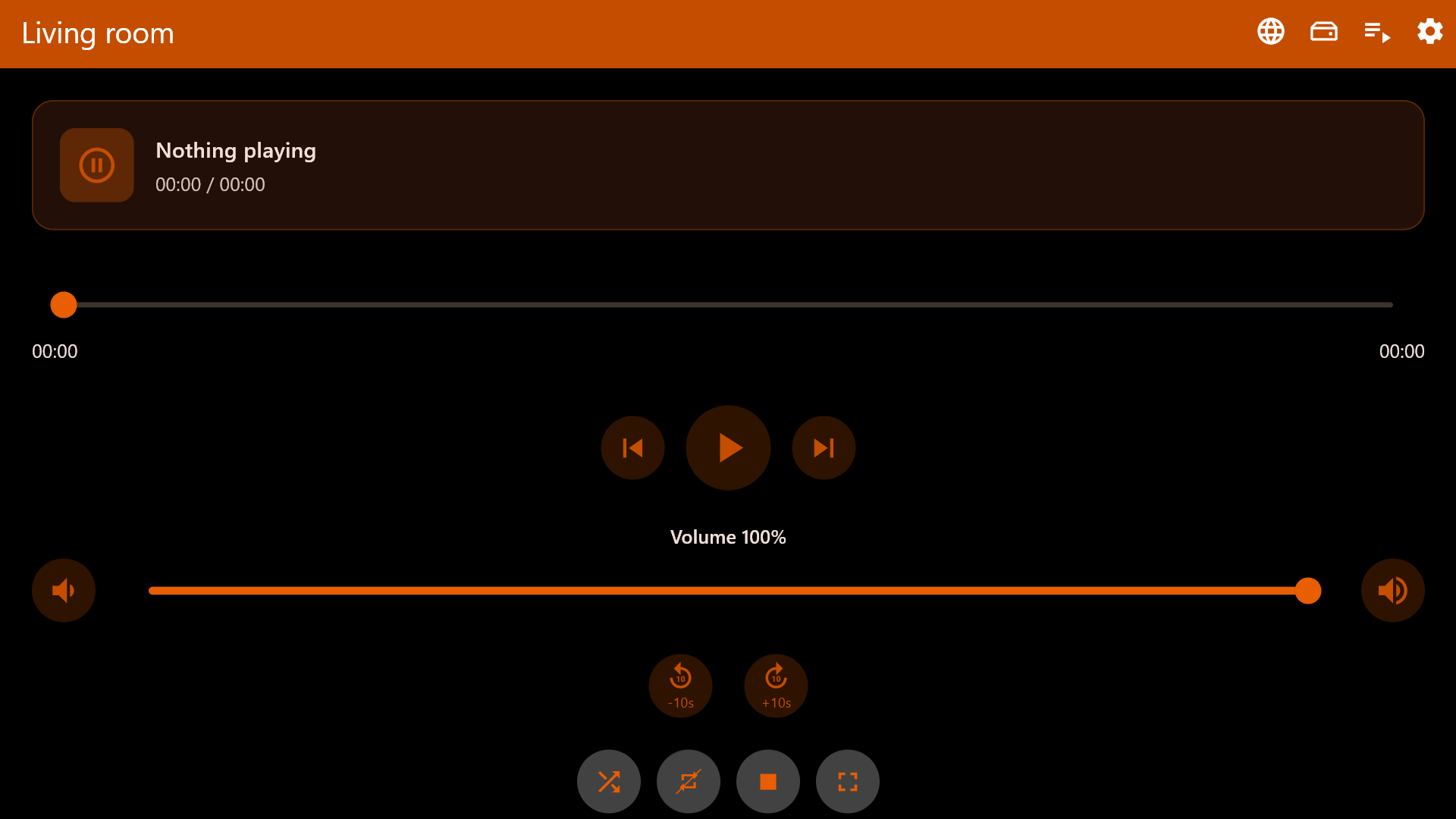
Remote control screen
Shows the track currently playing, and allows for playback control: Play, pause, stop, next, previous, seek, volume control, and toggling shuffle, repeat and fullscreen. From the top bar, load a URL stream, open the file browser or show the playlist.
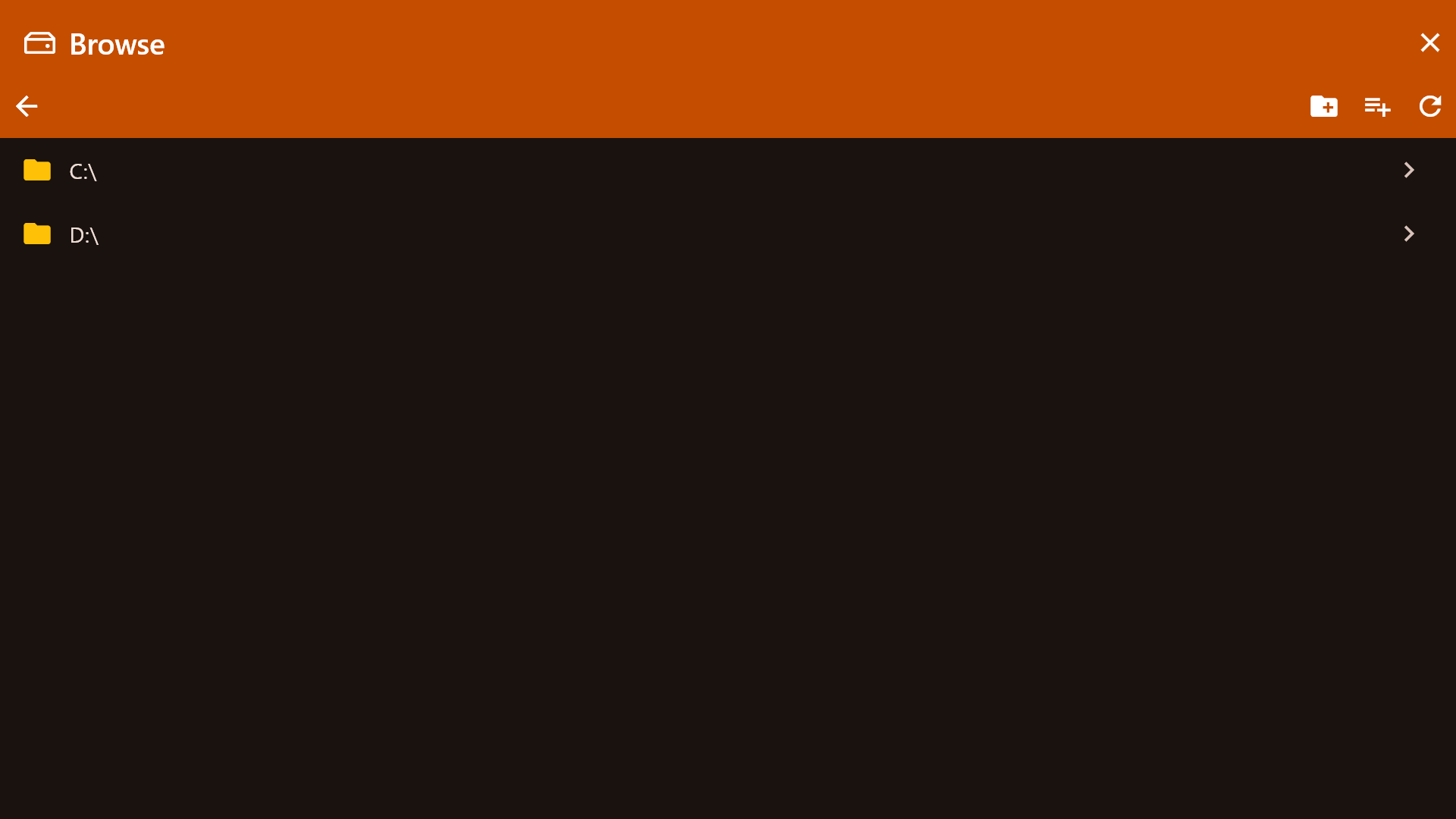
File browser screen
Browse through your files on the target that is running the VLC Media Player. Play/add individual files, all files from the current directory, or all files including from subdirectories.
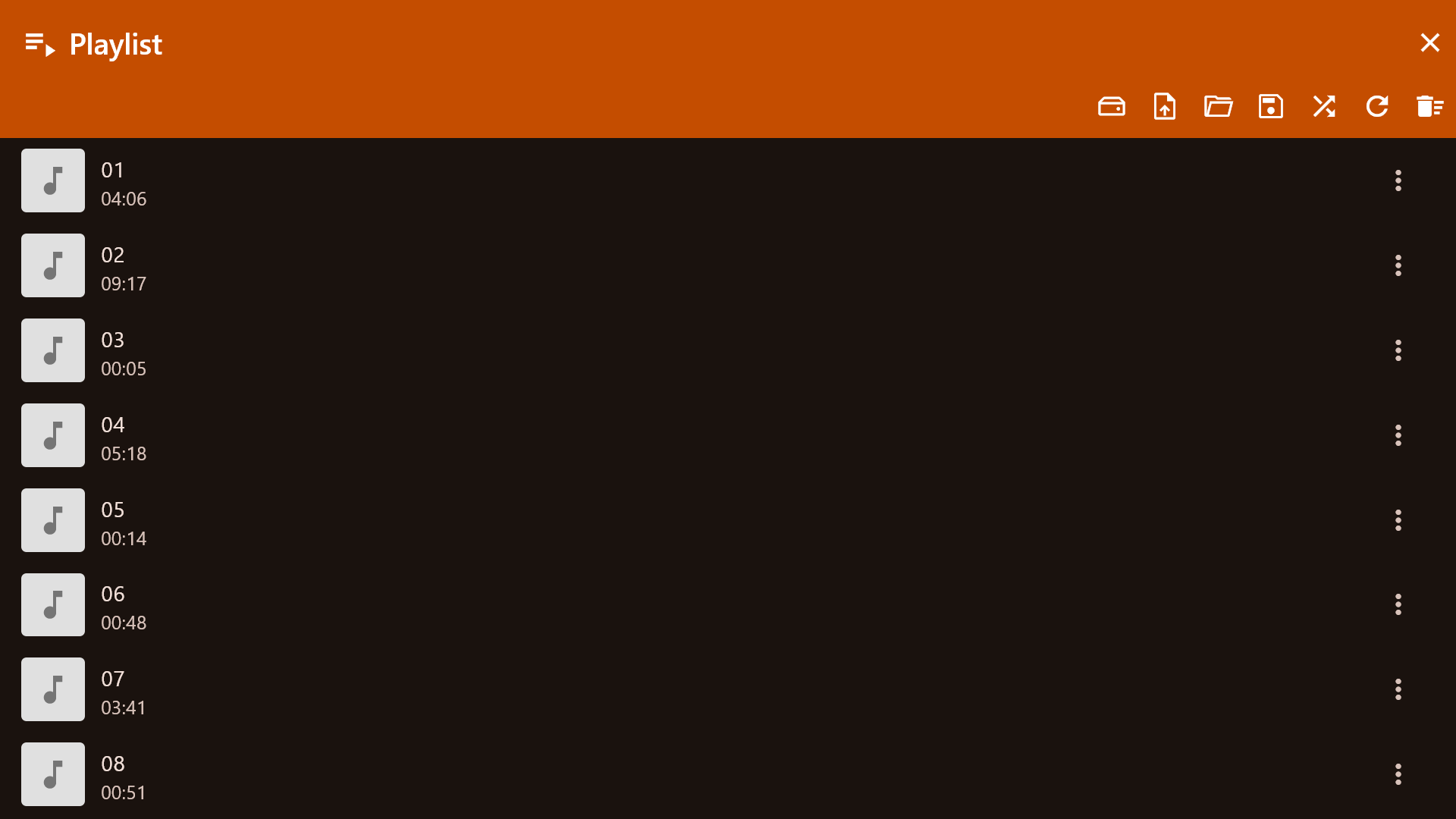
Playlist screen
Browse items, tap to play, rename or remove. Reorder by drag-and-drop or using the drop-down menu. Clear playlist, refresh playlist, or shuffle the playlist, so the items can be played in random order, and only once per cycle, as an alternative to VLC Media Player's native shuffle function.
Save the current playlist to your phone, or load a previously saved one. This allows for moving a playlist quickly from one target to another, if the tracks are accessible by both!
Alternatively, access the file browser to load items / playlists, and save the playlist to file (.xspf) on the target device*.
Requirements
VLC must have the HTTP interface enabled (IP, port, password as you set in VLC). Your phone and computer should be on the same network (or otherwise able to reach that address).
*Optional: Install the VLCC listener on the target for saving playlists to file on the target, or for shutting down the target device from the app settings sidebar.